TABLE OF CONTENTS
Your team is discussing a sensor mount in Slack. Someone needs a released M3 stainless standoff between 8 and 12 mm long. Another engineer has the assembly in a STEP file. Before the design can move forward, the assembly and its new parts need an engineering change order.
With Duro MCP, an AI assistant can help complete those tasks using your team’s Duro library. You describe the work in conversation, and the assistant uses Duro tools to search records, create components, build assemblies, and prepare changes.
Our explainer featurette follows that sensor-mount workflow through Claude in Slack. It shows how a question in a thread can lead to actual product records in Duro. Here’s how the connection works and how to use it in your own environment.
What is Model Context Protocol (MCP)?
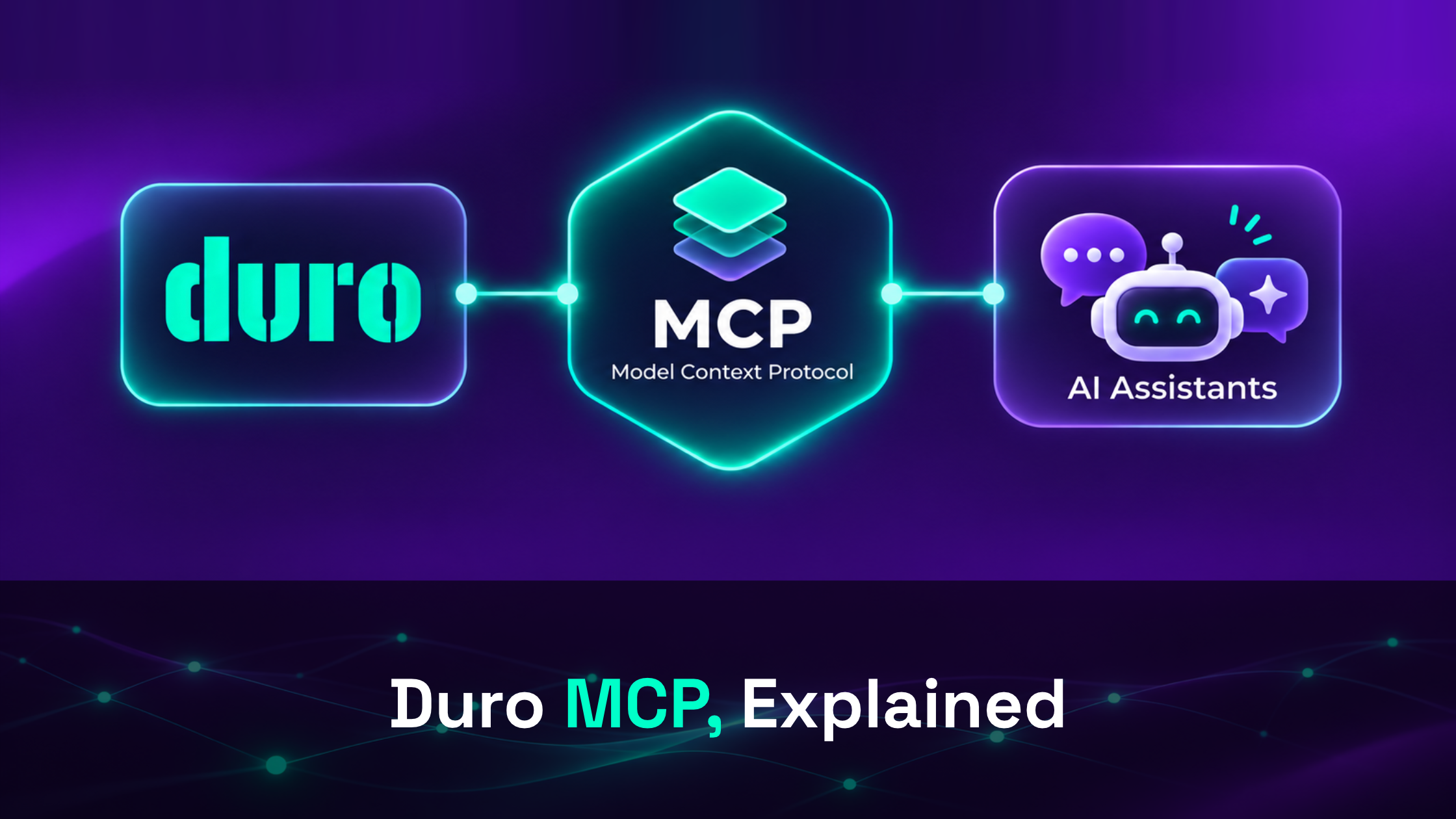
MCP stands for Model Context Protocol, an open standard for connecting AI applications to external software. Think of it as a common connector, similar to the role USB-C plays between devices.
Duro provides an MCP server: a service that exposes specific Duro operations to compatible AI applications. These operations are called tools. One searches components, another reads an assembly’s bill of materials, and another creates a change order. You describe your goal, and the assistant selects the tools it needs.
In the Slack example, Slack holds the conversation, Claude interprets the request, and Duro carries out the supported operations on the connected library. You can also connect through clients such as Claude Desktop and Claude Code.
This builds on Duro’s API-first architecture and the MCP gives AI applications a standard way to discover and use a defined set of those capabilities. Duro holds your product records as the assistant helps you work with them.
Find the parts your team already has
Let’s say an engineer asks Claude to find released M3 stainless standoffs between 8 and 12 mm long for the sensor mount. Claude searches the connected library and returns four matching records in the Slack thread, including their company part numbers, revisions, and release states. It also points out that one result is 316 stainless steel while the others are 303. The engineer can then evaluate existing parts before introducing another component.

The principle is familiar to anyone who has used natural language search in Duro: describe the engineering criteria, and the system translates them into a search. MCP makes that capability available through a connected assistant.
Also, check how the search was interpreted before acting on it. If a person, status, or other condition can’t be matched, the search can broaden the results or substitute a match. You can always ask the assistant to show the filters it actually applied when the result looks unexpected.
Create an assembly from a STEP file
Next up in our example, the engineer shares the sensor-mount STEP file and asks Claude to create the assembly in Duro with its child parts.
In this demonstration, Claude parses 14 parts from the file, matches nine to existing company part numbers, and creates five new parts. It creates the assembly, links all 14 children, and returns a link to the assembly record in Duro.

The agent creates the sensor-mount assembly with nine existing parts and five new parts.
As you can see, this workflow combines several operations behind one single request. The engineer can then open the Duro record to check component matches, quantities, and assembly structure.
Keep in mind, you can also inspect a file before creating records. Just ask what assembly structure and quantities the STEP file contains, then decide what to import. Duro’s MCP Tool Reference distinguishes operations that read information from those that write changes to the library.
Draft the change order in the same conversation
Once the assembly exists, the team can ask Claude to draft an engineering change order covering the assembly and its five new parts, with two named reviewers on the first review stage.
In our example, Claude creates a draft ECO containing six items and returns a link to it in Duro. The response explicitly says it is still a draft and has not been sent for approval. The assistant waits for an instruction to submit it.

And a key step that requires your interaction: the ECO remains a draft until submission is requested.
Drafting, submitting, reviewing, and releasing are all separate steps. Duro MCP provides tools to create change orders, add items, and submit them for review. The library’s workflow governs the approvals required for release. You need to choose the appropriate workflow when creating the ECO, since that will determine how the change will be reviewed.
Our article on change orders and configurable approval workflows explains the broader process. MCP helps prepare and initiate that work through conversation while the review continues in Duro.
More ways to work with your Duro library
The same connection can support everyday tasks beyond our sensor-mount example. Try requests such as:
- “Show me this assembly’s BOM three levels deep.”
- “Which assemblies use CPN 423-02054-00?”
- “Find resistors in Production modified in the last month.”
- “Create a capacitor called 10uF 25V X7R 0805 and attach this datasheet.”
- “Validate these rows against Duro before creating anything.”
Be specific about part numbers, materials, dates, and the information you need. For larger changes, ask the assistant to show the proposed records and run validation before saving them. The tool reference lists the available component, assembly, document, and change-order operations.
Understand the account behind the connection
Duro enforces the permissions of the account that authorized the connection. With a personal connection, that is your account. A viewer’s assistant can read records but cannot create or edit them. Changes are attributed to the connected account in Duro’s history.
In the shared Slack setup shown in the example video, everyone tagging Claude acts through the dedicated service account. Its library access and role determine what the assistant can do, and its identity is used for changes. Choose that account’s permissions with the shared use in mind.
Each connection is scoped to the selected library. It can’t reach other libraries through that credential or administer users, permissions, or library configuration. Access can also be revoked under Library Settings, and the credential is set to expire after 90 days.
Retrieved product information enters the assistant’s context and reaches your AI provider. Of course, you should always use an AI service approved for the engineering data involved. Duro’s What the AI Can See guide explains library scoping, authorization, attribution, and revocation in more detail.
Start with a part you know
Ready to get started with Duro MCP? Try this: follow the Duro MCP setup guide, connect to a library and search for a familiar component, or ask for the BOM of an assembly you work with regularly. Check the answer against the Duro record. Once you understand the results, try attaching a document or preparing a draft change order.
The sensor-mount example shows how those requests can fit together in everyday engineering work. A team finds existing hardware, turns a CAD assembly into linked Duro records, and prepares an ECO from the same conversation.
We’re excited to see what you can do with this powerful feature!

About the Author